
REVIEW of Topaz Gigapixel AI | Stable Diffusion Image to - Image | Buonanotte Divertentissima | Scaricare Immagini Gratis da Google | Turtles AI
REVIEW of Topaz Gigapixel AI
DukeRem27 gennaio 2023
TAGLINE
Topaz Gigapixel AI is a software tool that uses artificial intelligence to increase the resolution of images. It can take a lower-resolution image and make it appear as if it were taken at a much higher resolution. This can be useful for various tasks, such as making small image details more visible, increasing the print size of an image, and more. The software uses a machine learning algorithm to analyze the image and generate new pixels, that are consistent with the existing pixels, resulting in a higher-resolution picture. The program is available as a standalone application and as a plugin for Adobe Photoshop, Lightroom and Aperture. It supports different image formats like JPEG, TIFF, PNG, and more. It is compatible with Windows and Mac operating systems.
INTRODUCTION
Topaz Gigapixel AI is a powerful software tool that utilizes artificial intelligence to increase the resolution of images. It can take a lower-resolution image and make it appear as if it were taken at a much higher resolution, without introducing the typical artifacts that come with traditional upscaling methods. This makes it an extremely useful tool for photographers, graphic designers, and other professionals who frequently work with images.
The software uses a machine learning algorithm to analyze the image and generate new pixels that are consistent with the existing pixels. This results in a higher-resolution image that is more detailed and has more clarity than the original image. The software also includes a variety of settings and tools to help users fine-tune the output, such as sliders for adjusting the level of sharpness, noise reduction, and more.
One of the most notable features of Topaz Gigapixel AI is its ability to increase the resolution of images by a significant amount (up to 6x linearity, i.e. up to 36x for total pixel count). For example, it can take an image that was originally taken at a resolution of 1920 x 1080 (slightly above 2M pixels) and increase it to a resolution of 7680 x 4320 (33Mpixel), which is a 16x increase in resolution. This can be extremely useful for photographers who want to make large prints of their images or for graphic designers who need to use an image in a large format design project.
The software is available as a standalone application and as a plugin for Adobe Photoshop, Lightroom, and Aperture. This allows users to easily integrate it into their existing workflow and use it alongside other image editing tools. It supports different image formats like JPEG, TIFF, PNG, and more. It is compatible with Windows and Mac operating systems.
INTERFACE
The interface of Topaz Gigapixel AI is designed to be user-friendly and intuitive. When you open the software, you will be presented with a main window that has several sections and buttons.
At the top of the window, you will find the main menu bar, which provides access to various functions such as opening and saving images, adjusting the program settings, and more.
On the top of the right side of the window, there is a panel that displays the input image and allows you to zoom in and out, navigate through the image, and view the image at different magnifications.
Below that, there is a control panel that includes several sliders and buttons that allow you to adjust the output image.
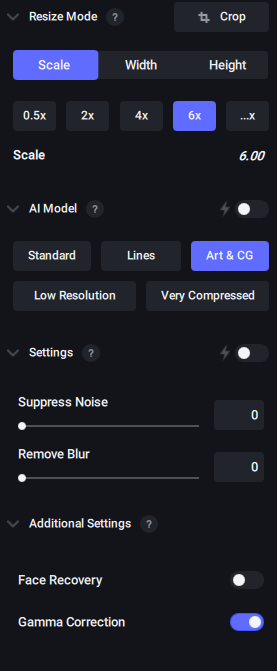 Topaz Gigapixel: Control panel
 Topaz Gigapixel compare buttons
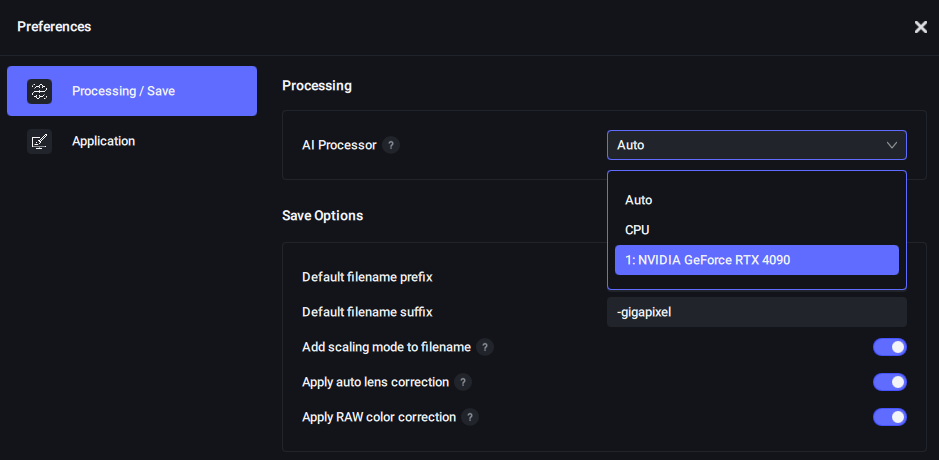 Topaz Gigapixel Settings
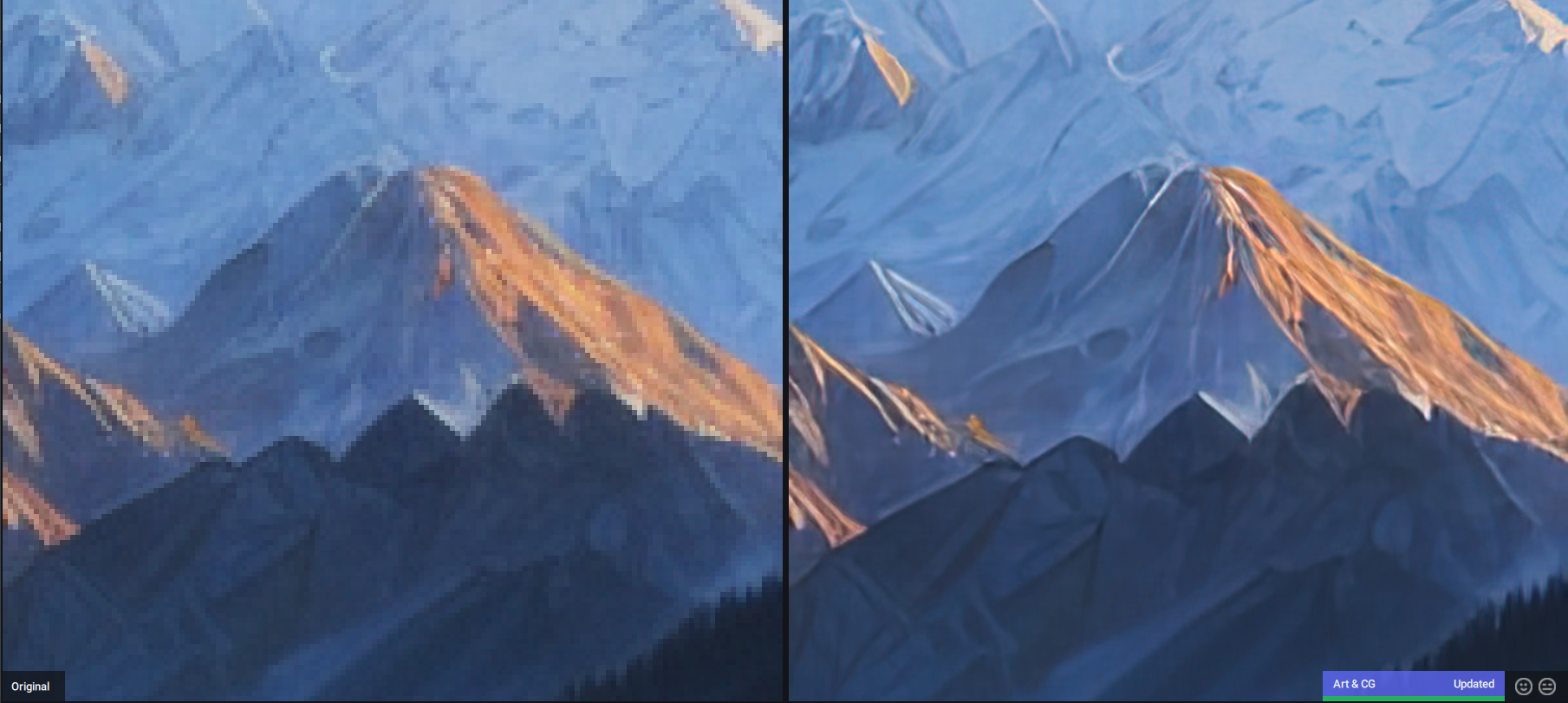 Topaz Gigapixel: upscaling digital art
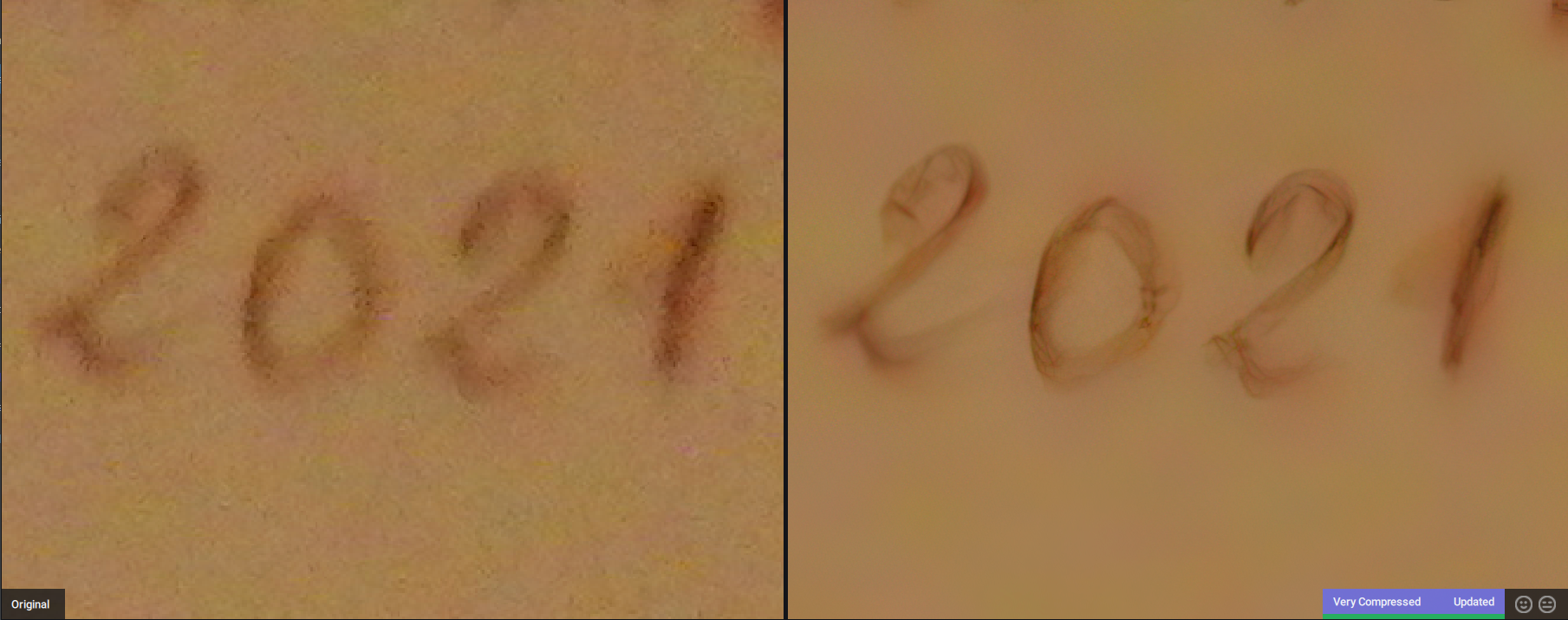 Topaz Gigapixel: upscaling very compressed photo
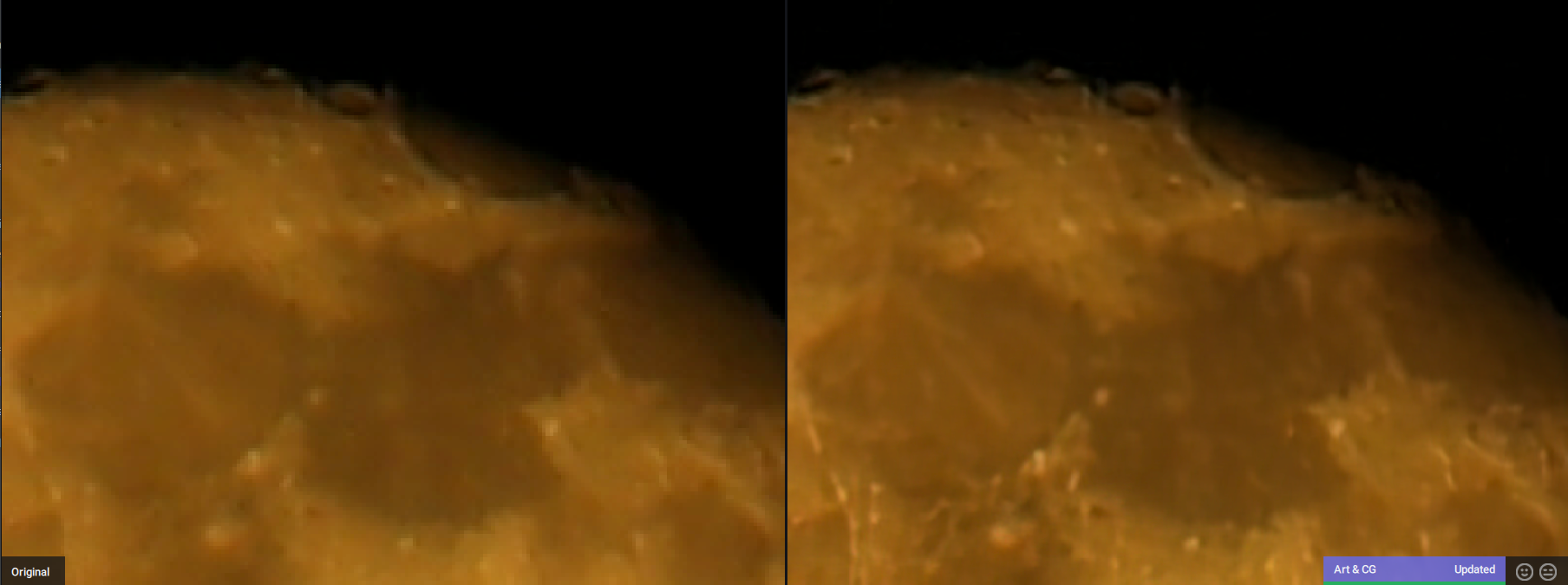 Topaz Gigapixel: upscaling a picture of the moon
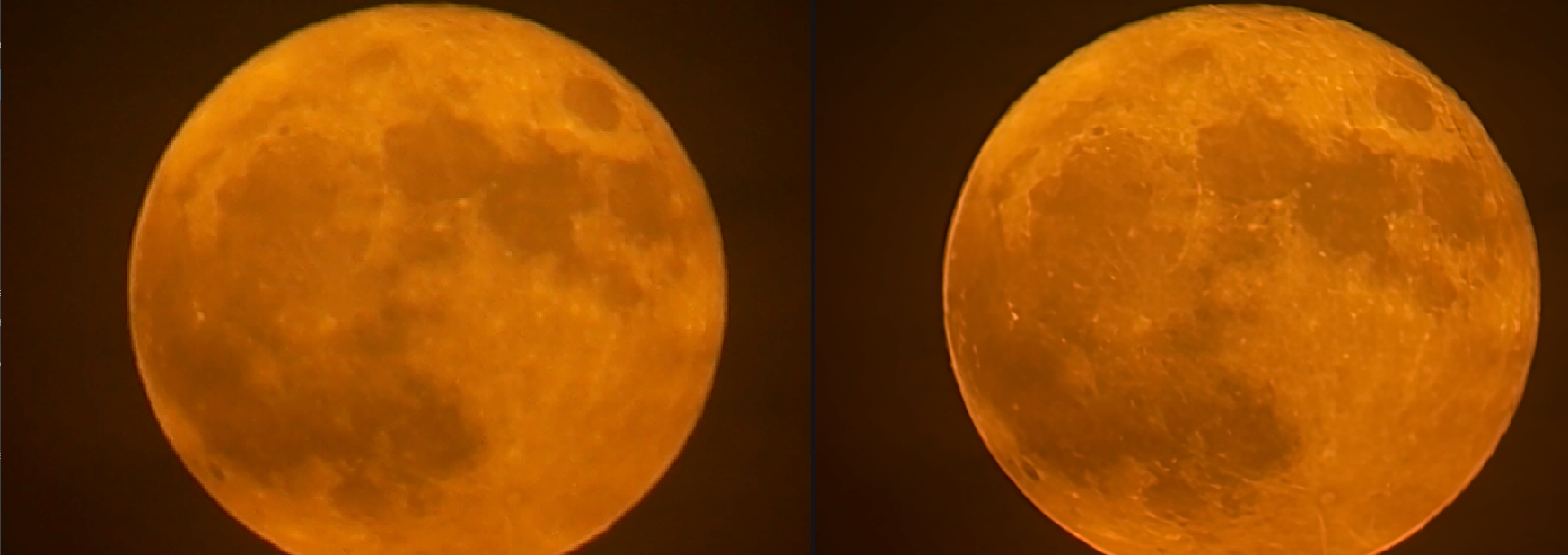 Topaz Gigapixel: upscaling a picture of the moon
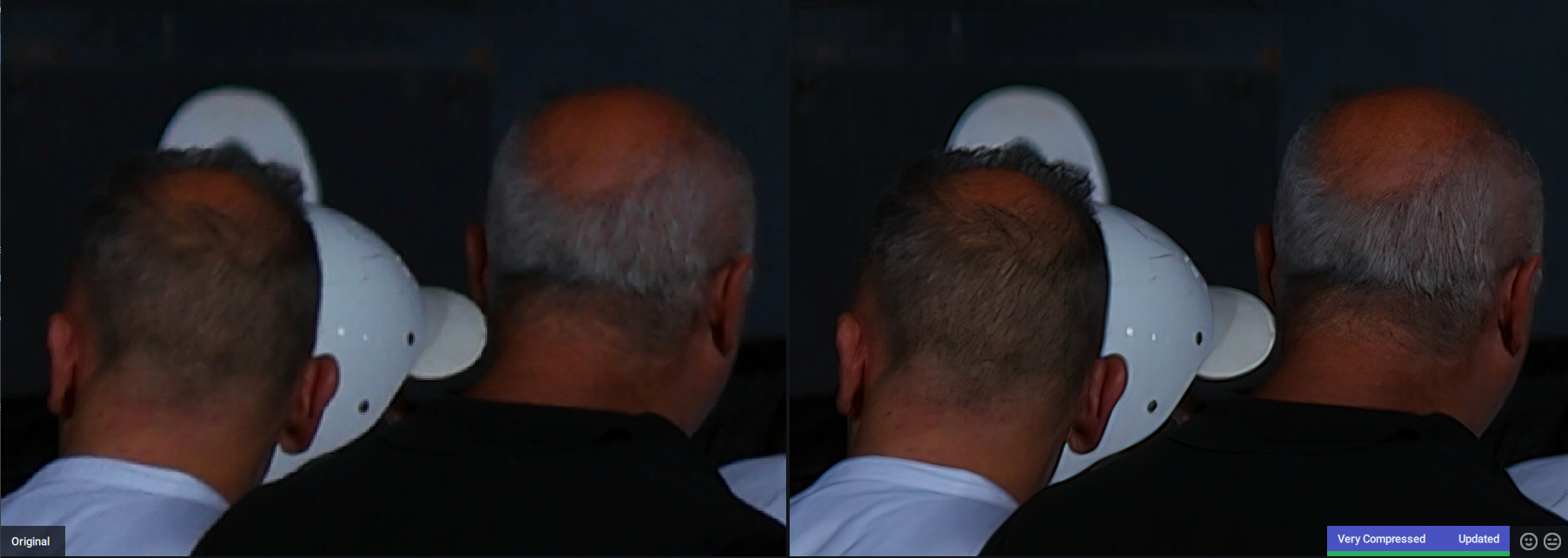 Topaz Gigapixel: upscaling a very dark and blurry image
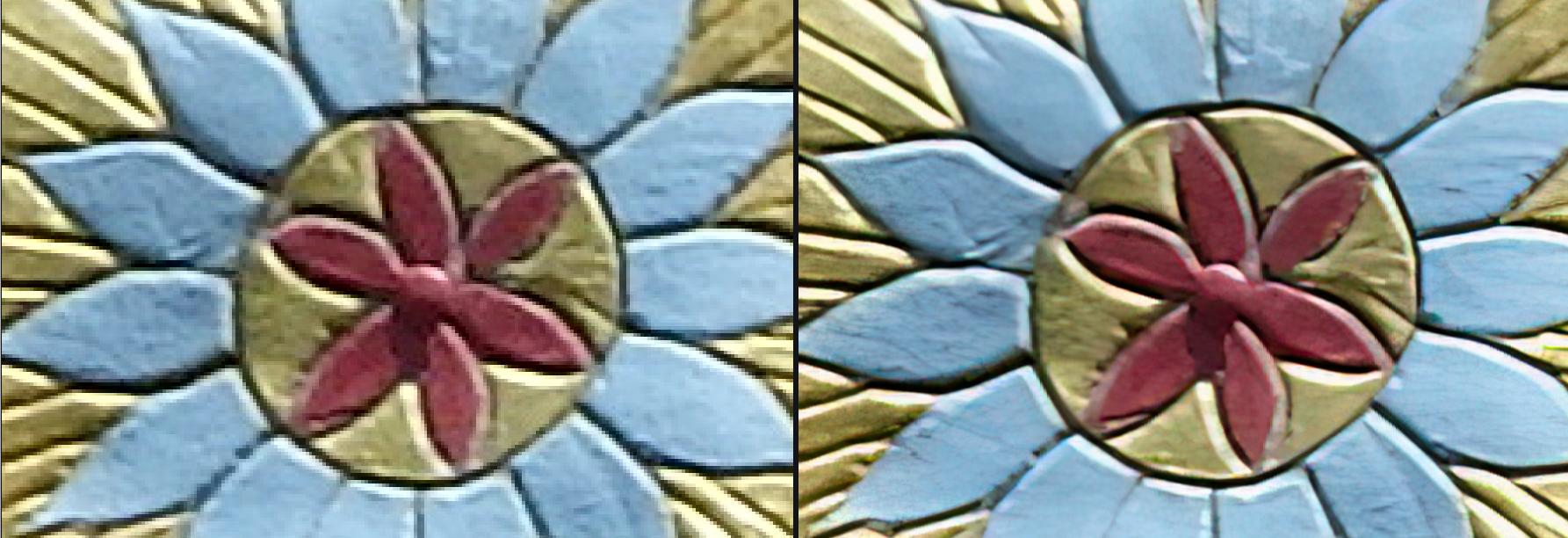 Topaz Gigapixel: upscaling a low res picture
Topaz Gigapixel: Control panel Topaz Gigapixel compare buttons Topaz Gigapixel Settings Topaz Gigapixel: upscaling digital art Topaz Gigapixel: upscaling very compressed photo Topaz Gigapixel: upscaling a picture of the moon Topaz Gigapixel: upscaling a picture of the moon Topaz Gigapixel: upscaling a very dark and blurry image Topaz Gigapixel: upscaling a low res picture